DexCue ScreenTag

Source identification / Free desktop utility

Know the source.
Name every output.

Clear identification wallpapers for the computers and displays in your AV setup. Give every output a name and a color before the show.

Get ScreenTag free Sign in to save it to your library.

Windows x64 · Portable test build · v0.1.3

Windows 0.1.3 is an unsigned portable test build.

Windows and Mac platform availability ↓
One computer. A clear identity.Output / 02
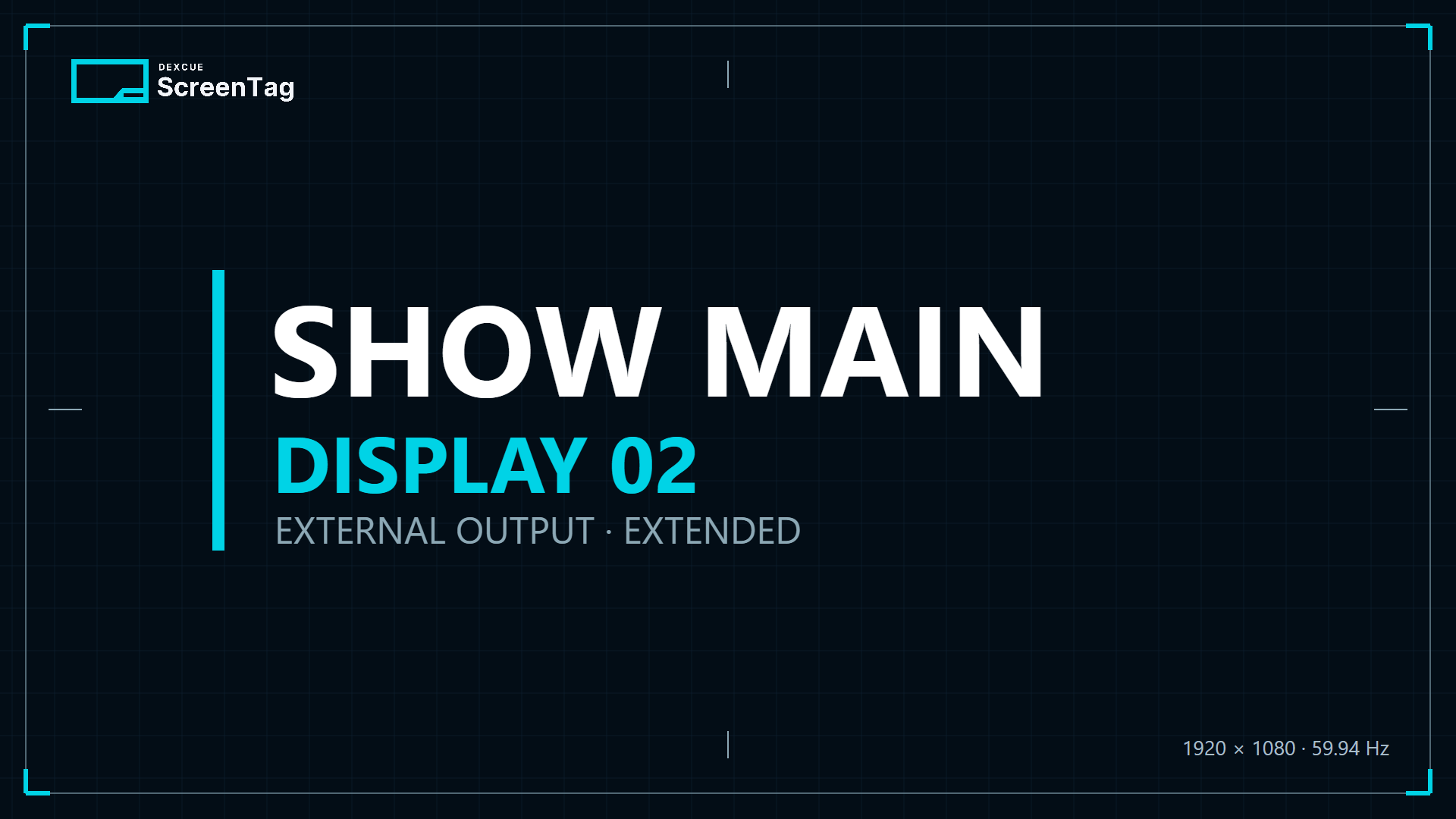
ScreenTag Classic wallpaper identifying Show Main, Display 02, as an extended external output at 1920 by 1080 and 59.94 Hz
Actual ScreenTag wallpaper / Classic
01 / AccessFree. No payment method.
02 / OperationOffline, without an app account.
03 / PrivacyNo app telemetry or cloud service.

A familiar problem

Which computer?
Which screen?

You have a slides computer, backup playback, a remote guest, and a room full of outputs. ScreenTag makes their identity visible during setup, rehearsal, and troubleshooting.

Name the computer Show Main. Keep its built-in screen as Operator and label the external output Program. When that wallpaper appears on a switcher or multiview, the crew can recognize the source.

ScreenTag creates visual identification. It does not detect downstream signal routing or verify what a switcher, converter, or screen receives.

  1. 01

    Name your computer and outputs.

    Use numbered displays, AV names, or your own labels.

  2. 02

    Choose the look.

    Select an accent, a wallpaper style, and an optional PNG or JPEG logo.

  3. 03

    Inspect, then Apply.

    Use Identify or the full-screen preview. Apply makes your edits visible in the wallpapers.

  4. 04

    Keep a preset for next time.

    Save named templates and explicitly recall the right setup for another computer.

The working surface

One panel.
Every connected output.

Actual Windows applicationScreenTag / Control panel
ScreenTag Windows panel with the Show Main computer name, presets, two display outputs, color controls, and Apply button
Separate wallpapers for extended displays. Mirrored outputs are grouped because they share one image.
Display information

Read the computer's reported output.

See resolution and fractional refresh rate, including values such as 59.94 Hz. Unavailable readings are shown as unavailable. ScreenTag does not change resolutions, install drivers, or switch mirror and extend modes.

Your working labels

Make the names useful to your crew.

Use labels such as Operator, Program, Preview, Confidence, Stage Left, LED Wall, or Stream Feed. Choose global colors or override an individual output.

Deliberate changes

A preview is not an Apply.

Check an output with Identify or a full-screen preview. Pending edits and new outputs need Apply. Previously applied outputs can redraw after display changes using the last applied settings while the app stays open.

Three ways to identify

Pick the wallpaper
for the task.

Classic identification wallpaper with a dark grid and the Show Main source name
01 / Classic

A clear starting point.

A dark grid, large source name, accent label, and subtle frame.

ScreenTag Signal check wallpaper with the Show Main source name, grid, circle, edge marks, color bars, and gray steps
02 / Signal check

Look across the image.

Grid, circle, edge marks, color bars, and gray steps for visual line checks. Not a measurement or calibration tool.

ScreenTag Multiview slate wallpaper with the Show Main source name and large colored band
03 / Multiview slate

Recognize the small tile.

A prominent source name and a large colored band designed for multiview layouts.

Add it to your toolkit

Free to get.
Choose your platform.

Add ScreenTag to your website library, then choose the available build for your computer. One free claim covers Windows, Mac Apple Silicon, and Mac Intel releases. No cart, subscription, or payment method is required.

Choose your download

Separate builds for Windows x64, Mac Apple Silicon, and Mac Intel. Only published releases are available.

Get ScreenTag free Sign in to save it to your library.
  • Windows x64v0.1.3
    Available
  • Mac Apple Siliconv0.0.2
    Available
  • Mac Intelv0.0.2
    Available

Windows 0.1.3: put the EXE in a writable folder and run it. No installer or separate .NET installation is needed. Native libraries extract automatically into a local cache.

This Windows test build is unsigned. Review it under your organization's software security policy.

Before you start

A few practical details.

Does ScreenTag need an account or internet connection?

A DexCue website account records your free library claim and gives you the download. This records which account added ScreenTag, not whether you installed it or how you use it. The application itself runs offline without an account, telemetry, or a cloud service.

Which Mac download should I choose?

Mac Apple Silicon and Mac Intel are separate builds. Choose the available entry that matches your Mac. Each build has its own version and release availability.

Does it verify or calibrate the signal?

No. ScreenTag identifies sources visually using wallpapers and information reported by the operating system. Signal-check graphics are visual aids, not measurement, calibration, or compliance certification.

What happens when I close the app or restore a wallpaper?

Closing ScreenTag leaves the last wallpaper in place and stops automatic updates. Other applications can cover the wallpaper. Restore can return the original image when its file is still available; it does not reconstruct slideshows, dynamic wallpapers, wallpaper positioning, or macOS Spaces.

Can I share presets between computers?

Shared preferences and named templates live beside the app. An optional OneDrive application folder can carry those files between computers, and shared changes are read when ScreenTag opens. Machine identity and wallpaper recovery remain local. This is not live fleet management, and simultaneous preset edits can conflict.

What should I check before using a build?

The Windows 0.1.3 download is a portable test build. Check the release notes for your platform. Test wallpaper changes and restoration, display transitions, and any shared preferences in your own setup before relying on it during a production.


Entirely optional

Want to support its development?

Choose a one-time contribution in USD. ScreenTag stays free whether you contribute or not.

Support ScreenTag